SotA Companion: Android Setup Guide
By default, Shroud of the Avatar restricts the companion chat so it can only be accessed on the exact PC running the game. To view the live chat on your Android device, you need to run a lightweight Proxy Bridge on your PC and use a 1-click browser bookmark to sync your session token.
Step 1: Find Your PC's Local IP Address
Both your browser bookmark and your Android app need to know your PC's local Wi-Fi IP address.
- Open a Command Prompt on your PC (Press Win + R, type
cmd, and press Enter). - Type
ipconfigand press Enter. - Look under your active network adapter (usually "Wireless LAN adapter Wi-Fi" or "Ethernet adapter").
- Find the IPv4 Address line (for example,
192.168.1.101) and note it down.
Step 2: Start the PC Proxy Bridge
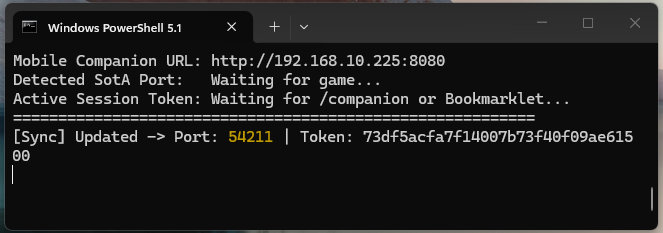
Run the proxy script on your PC before connecting your phone so it can bridge your local network to the game.
- Download and install Node.js if you haven't already.
- Download the sota-proxy.js file to your PC (right-click and select Save link as...).
- In your Command Prompt, navigate to the folder where you saved the file and run it by typing:
node sota-proxy.js - Leave this Command Prompt window open while playing.
Step 3: Add the 1-Click Sync Bookmark to Your PC Browser
When you launch the companion in-game, the game creates a hidden session token in your PC's web browser and immediately erases it from the address bar. Adding this bookmark lets you send that token to the Proxy Bridge with a single click.
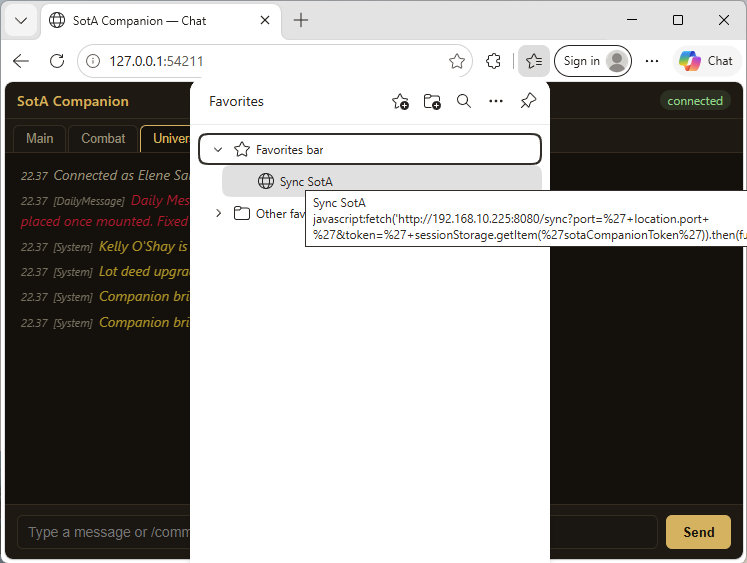
- Show your PC browser's Bookmarks Bar (press Ctrl + Shift + B in Chrome, Edge, or Firefox).
- Right-click your Bookmarks Bar and select Add page... (or Add bookmark...).
- Set the Name to:
Sync SotA to Phone - In the URL field, paste the following code, making sure to replace
192.168.1.101with your PC's actual IPv4 address from Step 1:javascript:fetch('http://192.168.1.101:8080/sync?port='+location.port+'&token='+sessionStorage.getItem('sotaCompanionToken')).then(function(r){return r.text();}).then(alert);
Step 4: Launch the Game Chat & Sync
- Launch Shroud of the Avatar on your PC and log in with your character.
- In the in-game chat window, type:
/companion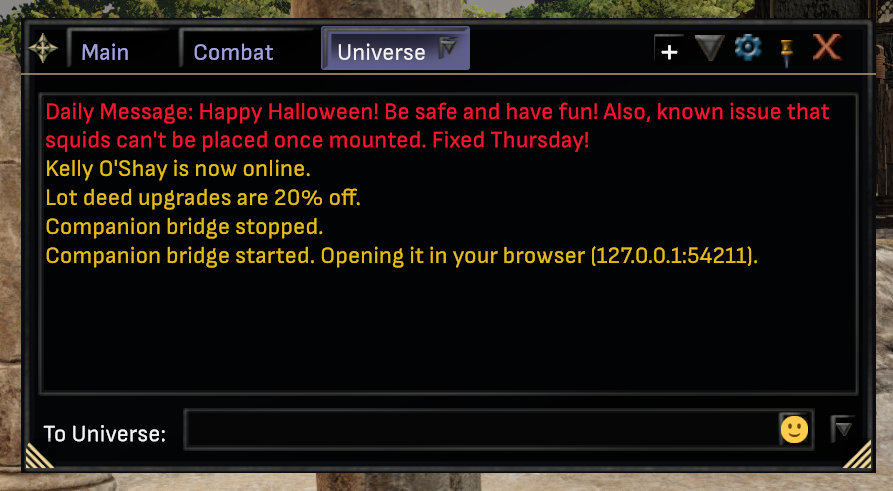 In-game chat window showing the companion bridge opened
- When the Companion tab opens in your PC browser, click the Sync SotA to Phone bookmark you created in Step 3.
- A pop-up message will confirm:
Synced SotA Companion (Port ...) to LAN Proxy!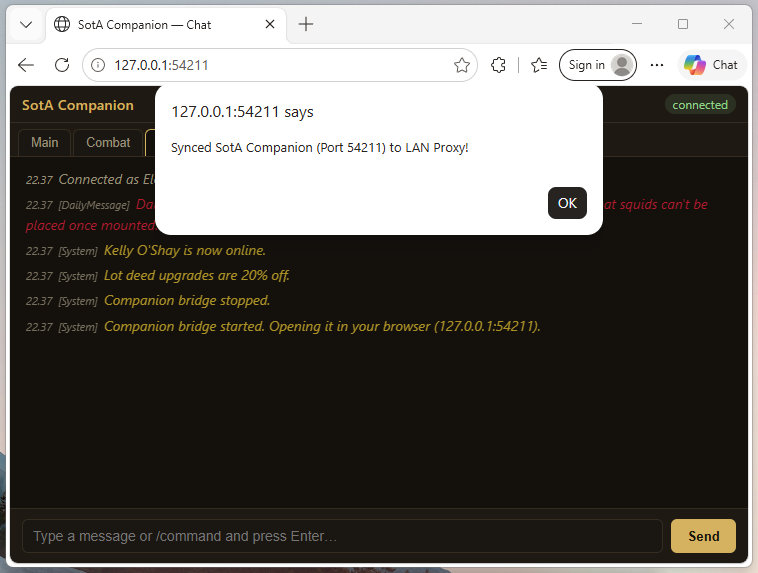 Browser confirmation alert confirming the session synced with the proxy
Step 5: Connect the Android App
- Open the Elene Sali SotA Companion app on your Android device and go to the Live Chat view.
- Tap the IP Settings button in the top header.
- Enter your PC's IPv4 address from Step 1 followed by
:8080(for example,192.168.1.101:8080). - Tap Reconnect.
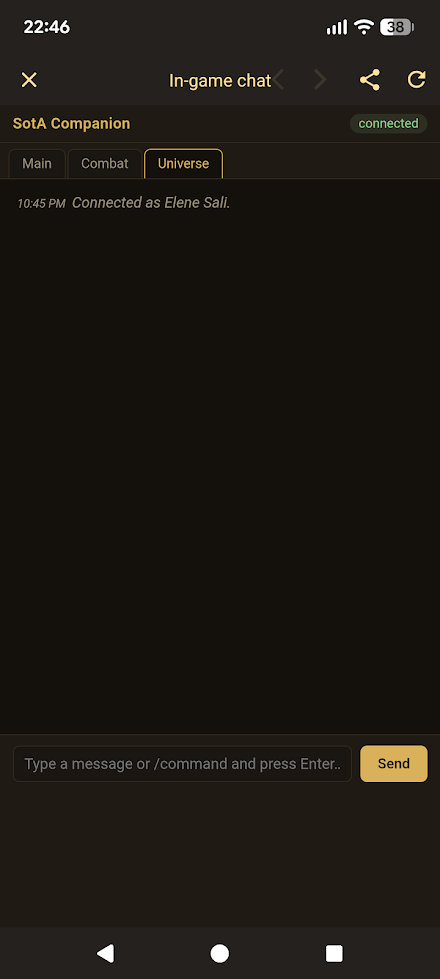
✓ Success! The status indicator in your Android app will turn green and say connected. You can now read and send in-game chat messages directly from your Android device.
Troubleshooting
- App stays "disconnected": Make sure
node sota-proxy.jsis running on your PC and that you clicked the Sync SotA to Phone bookmark on the PC browser tab after typing/companion. - Cannot connect from phone at all: Windows Firewall may be blocking incoming traffic on port 8080. Open an Administrator Command Prompt on your PC and run:
netsh advfirewall firewall add rule name="SotA Companion Proxy 8080" dir=in action=allow protocol=TCP localport=8080 - IP Address changed: If your router assigns your PC a new IP address later, check
ipconfigagain (Step 1) and update the IP inside both your browser bookmark and the Android app's IP Settings.